
This notebook presents useful Python libraries for geospatial visualisation. We use OSM intersection features and GTFS stop features for the same Vienna area, but we keep them on separate maps and charts. Overlaying both sources on one figure hides patterns in each dataset.
Why visualisation matters
Visualisation is not only useful for presenting final results, but also for validating and debugging spatial data throughout the whole processing pipeline. Interactive maps might help identify errors like incorrect coordinate reference systems (CRS), missing or duplicated geometries, outliers or gaps in coverage.
Therefore, by visually inspecting data often and early, many processing errors can be detected before expensive analysis steps are performed. This makes visualisation a powerful tool that should not be neglected.
Imports and Configuration
%matplotlib inline

import sys
import zipfile
from pathlib import Path

import folium
import geopandas as gpd
import iplotx as ipx
import matplotlib.pyplot as plt
import networkx as nx
import pandas as pd
import requests
import contextily as cx
import seaborn as sns
from folium import Element
from matplotlib.patches import Patch
from scipy.spatial import cKDTree
from shapely import wkb
from shapely.geometry import box

# Importing custom functions
sys.path.append(str(Path("..").resolve()))
from src.geoai.cookbook_functions import (
    carto_positron_tiles,
    create_hexagonal_grid,
    create_polygon_grid,
    get_base_map,
)

# Configuration
CITY_NAME = "Vienna"
BBOX = "16.335005,48.187854,16.400923,48.209995"
DATA_DIR = "./osm_data"
OUTPUT_DIR = "./output"

OSM_TYPE_COLORS = {
    "Path": "green",
    "Road": "blue",
    "Car": "crimson",
}
MODE_COLORS = {
    "Tram": "#e41a1c",
    "Subway": "#377eb8",
    "Bus": "#4daf4a",
    "Rail": "#984ea3",
    "Unknown": "#999999",
}

# Computing the center of the bounding box
min_lon, min_lat, max_lon, max_lat = map(float, BBOX.split(","))
bounds = [[min_lat, min_lon], [max_lat, max_lon]]
center_lat = (min_lat + max_lat) / 2
center_lon = (min_lon + max_lon) / 2
Now we load the two feature tables from earlier notebooks. intersections.csv is one point per OSM intersection (with type, number of arms, and delta). gtfs_stops.csv is one point per transit stop in the Vienna GTFS sample (with trip counts and a primary mode). Later cells plot each table on its own map or chart.
# Load OSM intersections
csv_url = "https://gitlab.tuwien.ac.at/api/v4/projects/13972/repository/files/intersections.csv/raw?ref=main&lfs=true"
PROJECT_ROOT = Path.cwd()
csv_path = PROJECT_ROOT / "output" / "Vienna" / "intersections.csv"
csv_path.parent.mkdir(parents=True, exist_ok=True)
if not csv_path.exists():
    response = requests.get(csv_url, timeout=30)
    response.raise_for_status()
    csv_path.write_bytes(response.content)

df_int = pd.read_csv(csv_path)
df_int["geometry"] = df_int["geom"].apply(lambda x: wkb.loads(bytes.fromhex(x)))
intersections_gdf = gpd.GeoDataFrame(df_int, geometry="geometry", crs="EPSG:4326")

# Load GTFS stop features from GitLab LFS (same pattern as intersections.csv)
gtfs_csv_url = (
    "https://gitlab.tuwien.ac.at/api/v4/projects/15378/repository/files/"
    "gtfs_stops.csv/raw?ref=main&lfs=true"
)
gtfs_csv = Path(OUTPUT_DIR) / CITY_NAME / "gtfs_stops.csv"
gtfs_csv.parent.mkdir(parents=True, exist_ok=True)
if not gtfs_csv.exists():
    response = requests.get(gtfs_csv_url, timeout=60)
    response.raise_for_status()
    gtfs_csv.write_bytes(response.content)

gtfs_df = pd.read_csv(gtfs_csv)
stops_gdf = gpd.GeoDataFrame(
    gtfs_df,
    geometry=gpd.points_from_xy(gtfs_df["stop_lon"], gtfs_df["stop_lat"]),
    crs="EPSG:4326",
)
print(f"Loaded {len(intersections_gdf)} OSM intersections and {len(stops_gdf)} GTFS stops")
Loaded 8155 OSM intersections and 395 GTFS stops
Folium
What is Folium?
Folium is a Python library that makes it easy to visualise data on an interactive Leaflet.js map. It allows us to take our spatial Python data and plot it directly on the map as markers, heatmaps, or choropleth grids. Unlike static plots, Folium maps are interactive, allowing users to zoom, pan, and toggle layers to explore complex spatial relationships in detail. Because Folium is built on top of Leaflet.js, maps can also easily be exported as standalone HTML files and shared easily.
There are multiple different tile providers for Folium available (think of it as the background map), like OpenStreetMap or CartoDB. For the visualisations in this cookbook, we have been using “CartoDB positron” tiles because they are simple and minimalist in style and therefore don’t distract visually from the data we’ve been plotting while still giving that visual spatial reference. CARTO requires CARTO_API_KEY on those tile requests; get_base_map reads it from the environment or from .env. For other applications and use-cases, different tiles might be better suited or preferable.
OSM intersections
This map shows points, not streets.
Each marker is one intersection from
intersections.csv(a node where at least three relevant OSM ways meet).Colour is
i_tpe: Path (walk only), Car (drive only), Road (both). Click a marker forosm_id, number of arms (num_ways), anddelta.The hexagon and rectangle layers (off by default) are the same aggregation grids as in the segmentation notebook. They are not part of OSM.
The CartoDB tiles in the background are only for orientation.
m_osm = get_base_map(center_lat, center_lon)
fg_pts = folium.FeatureGroup(name="OSM intersections", show=True)
for _, row in intersections_gdf.iterrows():
color = OSM_TYPE_COLORS.get(row.get("i_tpe"), "blue")
popup_html = f"""
<div style="font-family: sans-serif; font-size: 12px;">
<b>ID:</b> {row.get("osm_id")}<br>
<b>Type:</b> {row.get("i_tpe")}<br>
<b>Arms:</b> {row.get("num_ways")}<br>
<b>Delta:</b> {row.get("delta"):.2f}<br>
</div>
"""
folium.CircleMarker(
[row.geometry.y, row.geometry.x],
radius=2,
color=color,
fill=True,
popup=folium.Popup(popup_html, max_width=200),
).add_to(fg_pts)
fg_pts.add_to(m_osm)
intersection_meters = intersections_gdf.to_crs("EPSG:3857")
minx, miny, maxx, maxy = intersection_meters.total_bounds
total_area = box(minx, miny, maxx, maxy)
hex_grid = create_hexagonal_grid(total_area, side_length=250)
hex_grid.set_crs("EPSG:3857", inplace=True)
hex_grid_geo = hex_grid.to_crs("EPSG:4326")
folium.GeoJson(hex_grid_geo, name="Hex grid 250m", show=False).add_to(m_osm)
minx, miny, maxx, maxy = total_area.bounds
rect_grid = create_polygon_grid(
width=maxx - minx,
height=maxy - miny,
cell_size=(500, 500),
origin=(minx, miny),
crs="EPSG:3857",
)
rect_grid_geo = rect_grid.to_crs("EPSG:4326")
folium.GeoJson(rect_grid_geo, name="Rect grid 500m", show=False).add_to(m_osm)
legend_html = """
<div style="
position: fixed;
bottom: 50px; left: 50px; width: 180px;
border:2px solid grey; z-index:9999; font-size:13px;
background-color:white; opacity: 0.9;
padding: 10px;
border-radius: 5px;
">
<b>OSM intersections</b><br>
<span style="color:green;">●</span> Path<br>
<span style="color:blue;">●</span> Road<br>
<span style="color:crimson;">●</span> Car
</div>
"""
m_osm.get_root().html.add_child(Element(legend_html))
folium.LayerControl().add_to(m_osm)
m_osm
GTFS stops
This map shows stop locations from the Vienna GTFS sample, not routes and not the OSM street network.
Each marker is one
stop_idingtfs_stops.csv.Colour is
primary_mode: the mode that appears most often on trips serving that stop in this sample (Tram, Subway, Bus, Rail). It is not a ridership share.The popup is the stop name. Service intensity (
trip_count) is not drawn here; it appears in the histogram below.
We keep this map separate from the intersection map so stop clusters stay readable.
m_gtfs = get_base_map(center_lat, center_lon)
fg_stops = folium.FeatureGroup(name="GTFS stops", show=True)
for _, row in stops_gdf.iterrows():
folium.CircleMarker(
location=[row.stop_lat, row.stop_lon],
radius=4,
color=MODE_COLORS.get(row.primary_mode, "#999999"),
fill=True,
fill_opacity=0.75,
popup=row.stop_name,
).add_to(fg_stops)
fg_stops.add_to(m_gtfs)
legend_html = """
<div style="
position: fixed;
bottom: 50px; left: 50px; width: 160px;
border:2px solid grey; z-index:9999; font-size:13px;
background-color:white; opacity: 0.9;
padding: 10px;
border-radius: 5px;
">
<b>GTFS stops</b><br>
<span style="color:#e41a1c;">●</span> Tram<br>
<span style="color:#377eb8;">●</span> Subway<br>
<span style="color:#4daf4a;">●</span> Bus<br>
<span style="color:#984ea3;">●</span> Rail
</div>
"""
m_gtfs.get_root().html.add_child(Element(legend_html))
folium.LayerControl().add_to(m_gtfs)
m_gtfs
Statistical plots (Matplotlib and Seaborn)
Matplotlib is the base plotting library in Python. Seaborn sits on top of it and is better for statistical graphics.
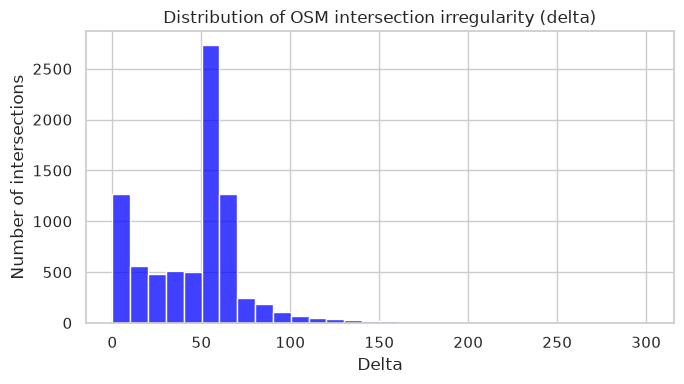
Simple category totals (for example three intersection types) do not need a chart. Below we plot distributions of continuous features: how irregular intersections are, and how many sample trips call at each stop.
OSM intersection irregularity (delta)
delta comes from feature engineering. It measures how far the incoming way bearings deviate from a regular intersection of the same number of arms (for three arms, a symmetric Y with 120 degree gaps). Smaller is more regular. Larger is more skewed.
The histogram’s x-axis is that delta value. The y-axis is how many intersections fall in each bin. It is not a map and not a count of intersection types.
sns.set_theme(style="whitegrid")
fig, ax = plt.subplots(figsize=(7, 4))
sns.histplot(
    data=intersections_gdf,
    x="delta",
    bins=30,
    color=OSM_TYPE_COLORS.get("Road", "steelblue"),
    ax=ax,
)
ax.set_title("Distribution of OSM intersection irregularity (delta)")
ax.set_xlabel("Delta")
ax.set_ylabel("Number of intersections")
fig.tight_layout()
plt.show()
GTFS trip counts per stop
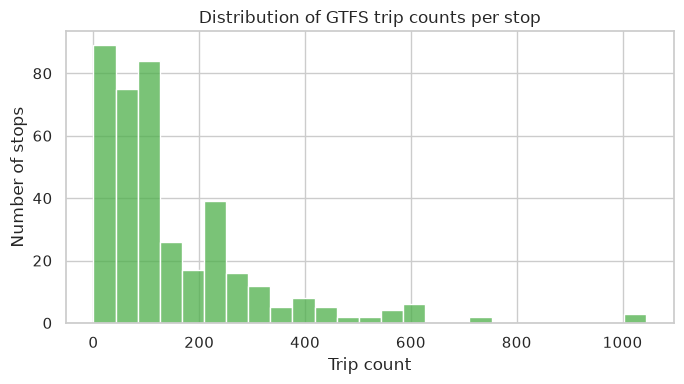
trip_count is the number of distinct trip_ids in this Vienna GTFS sample that visit the stop. It is not passengers, not vehicles per hour in the real city, and not the full Wiener Linien network: only what is in the sample feed.
The histogram’s x-axis is that trip count. The y-axis is how many stops have a count in each bin. A tall bar near zero means many stops are served by few sample trips; a long tail means a few stops are served by many trips.
fig, ax = plt.subplots(figsize=(7, 4))
sns.histplot(
    data=stops_gdf,
    x="trip_count",
    bins=25,
    color=MODE_COLORS.get("Bus", "#d94801"),
    ax=ax,
)
ax.set_title("Distribution of GTFS trip counts per stop")
ax.set_xlabel("Trip count")
ax.set_ylabel("Number of stops")
fig.tight_layout()
plt.show()
Iplotx
What is iplotx?
iplotx draws network graphs (nodes and edges) with matplotlib. When node coordinates are map positions, we can draw the graph on a Vienna CartoDB basemap.
OSM intersection neighbourhood
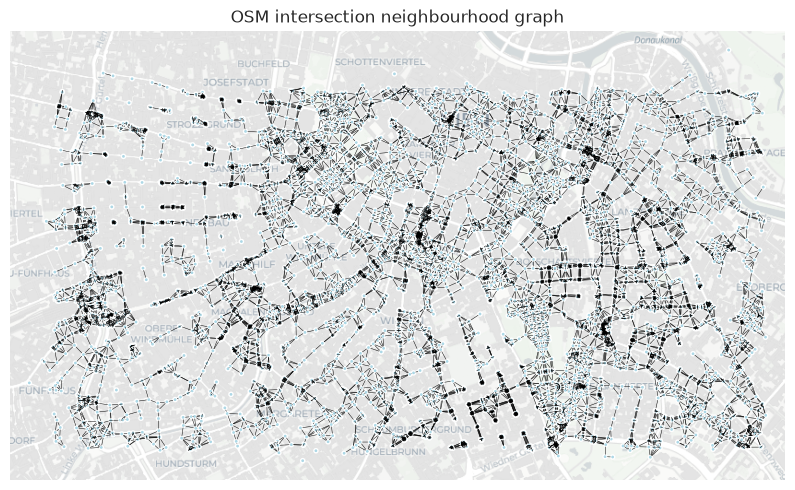
The figure is a neighbourhood graph of intersections on a Vienna basemap.
Each light-blue point is one intersection from intersections.csv. Each black line joins two intersections that sit next to each other at city-block scale: we build a Delaunay triangulation of the points and keep edges shorter than 140 m.
import contextily as cx
from scipy.spatial import Delaunay

# Work in metres so edge length is a real distance
osm_m = intersections_gdf.to_crs("EPSG:3857").reset_index(drop=True)
coords = list(zip(osm_m.geometry.x, osm_m.geometry.y, strict=True))
osm_ids = osm_m["osm_id"].astype(int).to_list()

# Delaunay keeps the graph planar (no k-NN stars). Drop long diagonals
# so only short, street-scale links remain.
MAX_DIST_M = 140
tri = Delaunay(coords)

G_osm = nx.Graph()
for nid, xy in zip(osm_ids, coords, strict=True):
    G_osm.add_node(nid, pos=xy)

for simplex in tri.simplices:
    for a, b in ((0, 1), (1, 2), (2, 0)):
        i, j = int(simplex[a]), int(simplex[b])
        x0, y0 = coords[i]
        x1, y1 = coords[j]
        if ((x0 - x1) ** 2 + (y0 - y1) ** 2) ** 0.5 <= MAX_DIST_M:
            G_osm.add_edge(osm_ids[i], osm_ids[j])

layout_osm = {n: G_osm.nodes[n]["pos"] for n in G_osm.nodes}
print(f"OSM graph: {G_osm.number_of_nodes()} nodes, {G_osm.number_of_edges()} edges")

fig, ax = plt.subplots(figsize=(10, 8))
# Draw the neighbourhood mesh as thin lines on the Vienna tiles.
ipx.network(
    G_osm,
    layout_osm,
    ax=ax,
    vertex_labels=False,
    vertex_size=3,
    vertex_facecolor="lightblue",
    edge_linewidth=0.35,
    edge_color="black",
    alpha=0.45,
)
xs = [xy[0] for xy in layout_osm.values()]
ys = [xy[1] for xy in layout_osm.values()]
pad = 200
ax.set_xlim(min(xs) - pad, max(xs) + pad)
ax.set_ylim(min(ys) - pad, max(ys) + pad)
cx.add_basemap(ax, source=carto_positron_tiles(), crs="EPSG:3857")
ax.set_title("OSM intersection neighbourhood graph")
ax.set_aspect("equal")
ax.set_axis_off()
plt.show()
OSM graph: 8155 nodes, 21720 edges
GTFS consecutive-stop graph
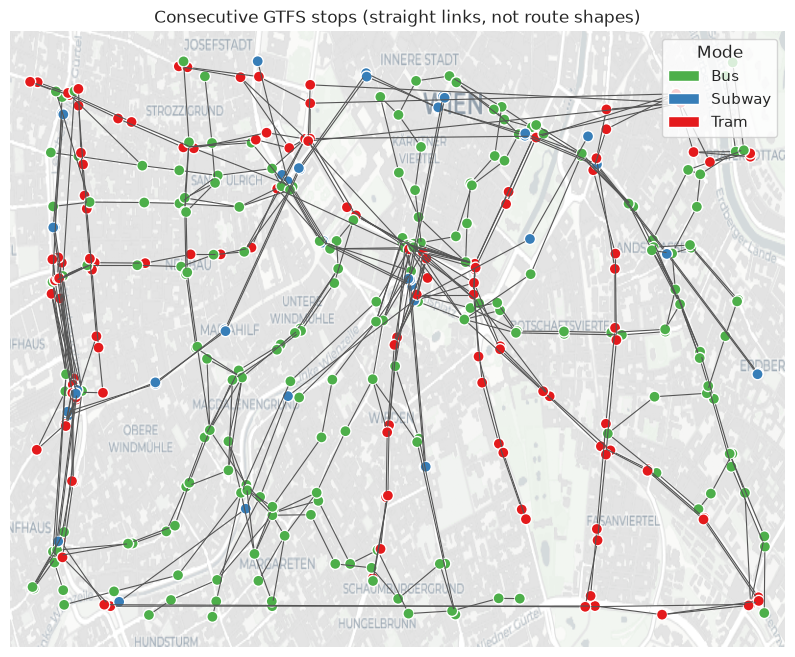
This figure is a transit stop graph, not streets and not GTFS shapes.txt route geometry.
Coloured points: stops that appear in at least one trip pair. Colour is
primary_mode(same meaning as on the Folium map).Grey lines: a straight line between two stops that follow each other in
stop_times(stop_sequenceon the sametrip_id). If many trips use the same pair, we still draw one undirected edge.The line is not the path the vehicle drives. Isolated stops (no neighbour in
stop_times) are omitted so the plot shows only the connected sample.
Again, the tiles are only a Vienna backdrop.
import contextily as cx

GTFS_ZIP_URL = (
    "https://gitlab.tuwien.ac.at/api/v4/projects/15378/repository/files/"
    "vienna_gtfs.zip/raw?ref=main&lfs=true"
)
cache_dir = Path("./gtfs_data")
cache_dir.mkdir(parents=True, exist_ok=True)
zip_path = cache_dir / "vienna_gtfs.zip"
feed_dir = cache_dir / CITY_NAME

if not zip_path.exists():
    print(f"Downloading {GTFS_ZIP_URL}")
    response = requests.get(GTFS_ZIP_URL, timeout=120)
    response.raise_for_status()
    zip_path.write_bytes(response.content)

if not (feed_dir / "stops.txt").exists():
    feed_dir.mkdir(parents=True, exist_ok=True)
    with zipfile.ZipFile(zip_path) as archive:
        archive.extractall(feed_dir)

stop_times = pd.read_csv(feed_dir / "stop_times.txt", dtype=str)
stop_times["stop_sequence"] = stop_times["stop_sequence"].astype(int)
stop_times = stop_times.sort_values(["trip_id", "stop_sequence"])
stop_times["next_stop"] = stop_times.groupby("trip_id")["stop_id"].shift(-1)
edges = (
    stop_times.dropna(subset=["next_stop"])[["stop_id", "next_stop"]]
    .drop_duplicates()
)

stops_m = stops_gdf.to_crs("EPSG:3857").set_index("stop_id")

G_gtfs = nx.Graph()
for stop_id, row in stops_m.iterrows():
    G_gtfs.add_node(
        stop_id,
        pos=(row.geometry.x, row.geometry.y),
        mode=row.primary_mode,
    )
for a, b in edges.itertuples(index=False):
    if a in G_gtfs and b in G_gtfs:
        G_gtfs.add_edge(a, b)

isolates = list(nx.isolates(G_gtfs))
G_gtfs.remove_nodes_from(isolates)

layout_gtfs = {n: G_gtfs.nodes[n]["pos"] for n in G_gtfs.nodes}
vertex_color = [MODE_COLORS.get(G_gtfs.nodes[n]["mode"], "#999999") for n in G_gtfs.nodes]
print(f"GTFS graph: {G_gtfs.number_of_nodes()} stops, {G_gtfs.number_of_edges()} trip links")

fig, ax = plt.subplots(figsize=(10, 8))
ipx.network(
    G_gtfs,
    layout_gtfs,
    ax=ax,
    vertex_labels=False,
    vertex_size=8,
    vertex_facecolor=vertex_color,
    edge_linewidth=0.8,
    edge_color="#555555",
)
xs = [xy[0] for xy in layout_gtfs.values()]
ys = [xy[1] for xy in layout_gtfs.values()]
pad = 200
ax.set_xlim(min(xs) - pad, max(xs) + pad)
ax.set_ylim(min(ys) - pad, max(ys) + pad)
cx.add_basemap(ax, source=carto_positron_tiles(), crs="EPSG:3857")
present = sorted({G_gtfs.nodes[n]["mode"] for n in G_gtfs.nodes})
ax.legend(
    handles=[
        Patch(facecolor=MODE_COLORS.get(name, "#999999"), label=name) for name in present
    ],
    title="Mode",
    loc="upper right",
)
ax.set_title("Consecutive GTFS stops (straight links, not route shapes)")
ax.set_axis_off()
plt.show()
GTFS graph: 387 stops, 460 trip links
How to decide which visualisation library to use?
When choosing a visualisation library for geospatial data, the decision depends on the type of analysis and the level of interactivity required.
Folium is best for interactive maps of point features (intersections by type, stops by mode). Use a separate map per source when the layers would crowd each other.
Matplotlib and Seaborn are for statistical charts of attributes (
delta,trip_count), not for replacing a map.iplotx is for graphs: an intersection-neighbourhood graph (geometric links, not streets) and a consecutive-stop transit graph (schedule links, not route shapes).
Therefore, Folium is typically preferred for interactive mapping, Matplotlib and Seaborn for analytical charts, and iplotx for networks.
Summary
In this notebook you learned:
Why visualisation is an important step in a geospatial data handling pipeline
How to map OSM intersections and GTFS stops on separate Folium maps, and what the colours mean
How to read a
deltahistogram and atrip_counthistogram (distributions, not maps)How to draw two different iplotx graphs on a Vienna basemap: intersection neighbourhood links versus consecutive GTFS stops, and how those differ from real streets and route shapes